PowerupStack
Simple Voice Chat is a Minecraft plugin that adds proximity-based voice communication directly into the game. It's ideal for immersive multiplayer experiences—no need to jump into external voice apps like Discord.
Prerequisites
To use Simple Voice Chat, your server must run one of the following:
- Paper
- Spigot
Each player must also install a compatible Simple Voice Chat client mod. The server plugin alone does not add voice chat to an unmodified client.
Setup instructions
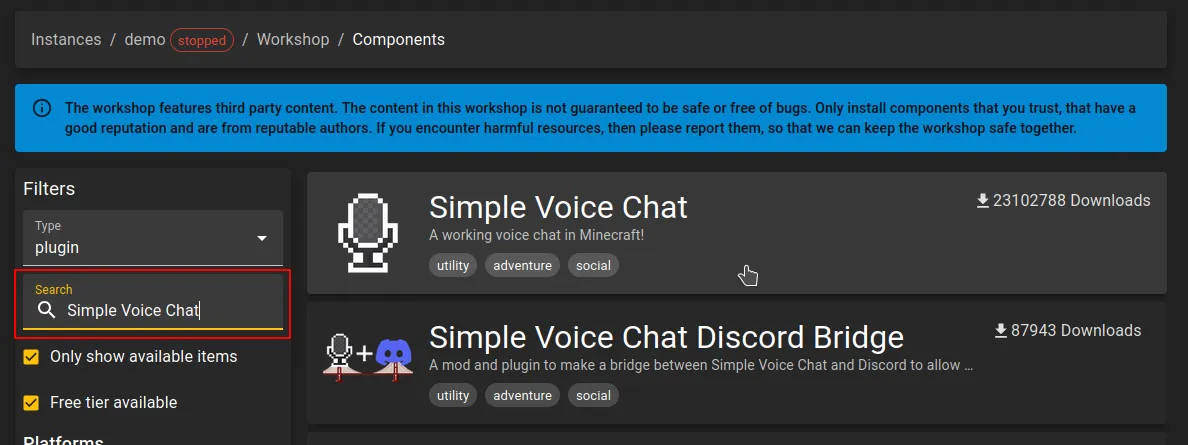
- Locate the plugin
Search for "Simple Voice Chat" in the workshop - Install the plugin
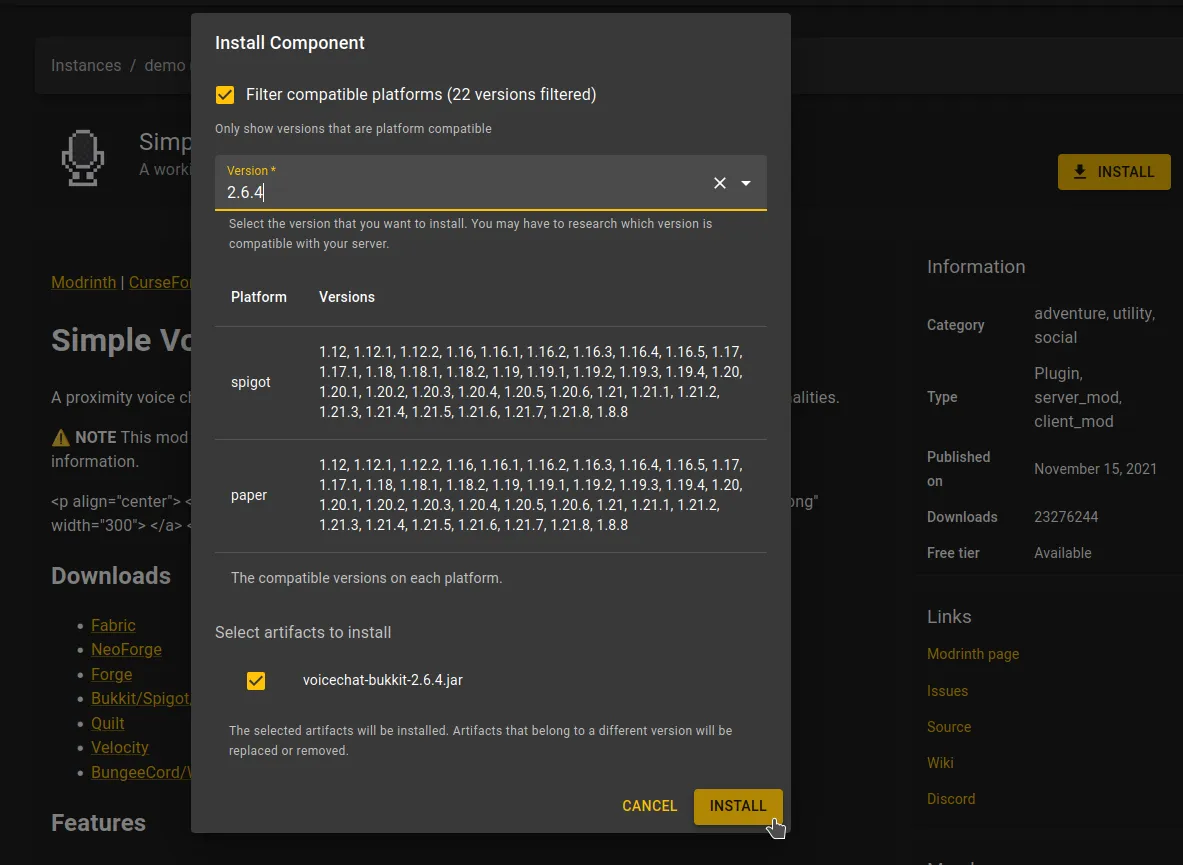
Click Install, choose a compatible version and confirm installation. - Forward a UDP port
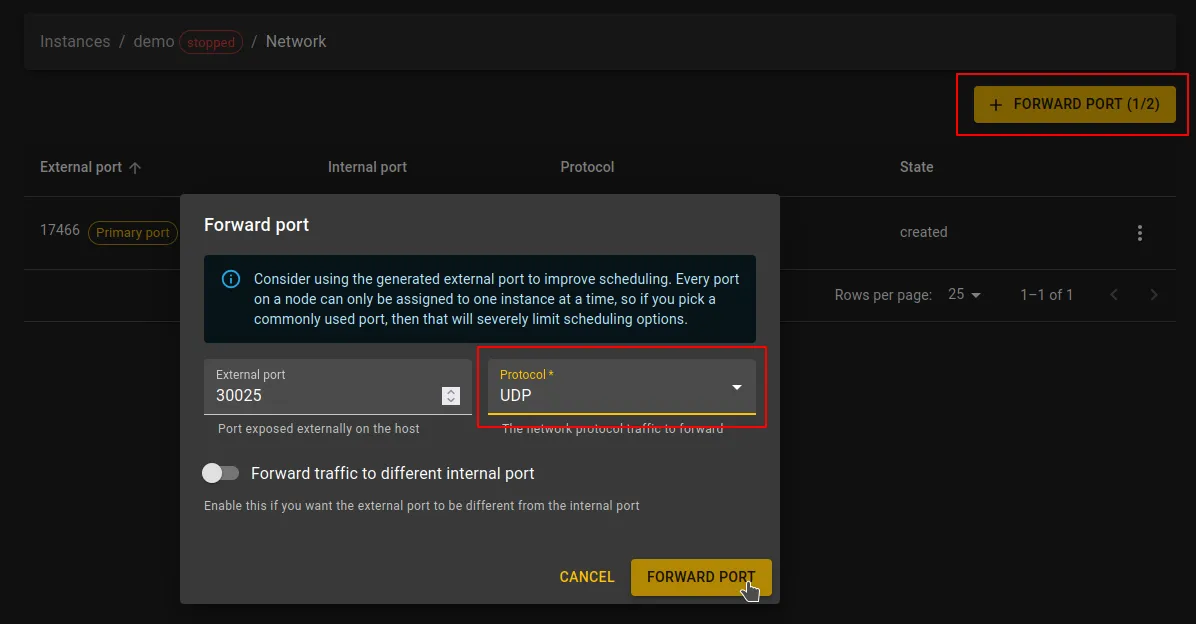
On the network settings page forward a port using the UDP protocol (or TCP/UDP if needed). Note the external port number. - Restart the server
This generates the plugin configuration files. - Configure the plugin
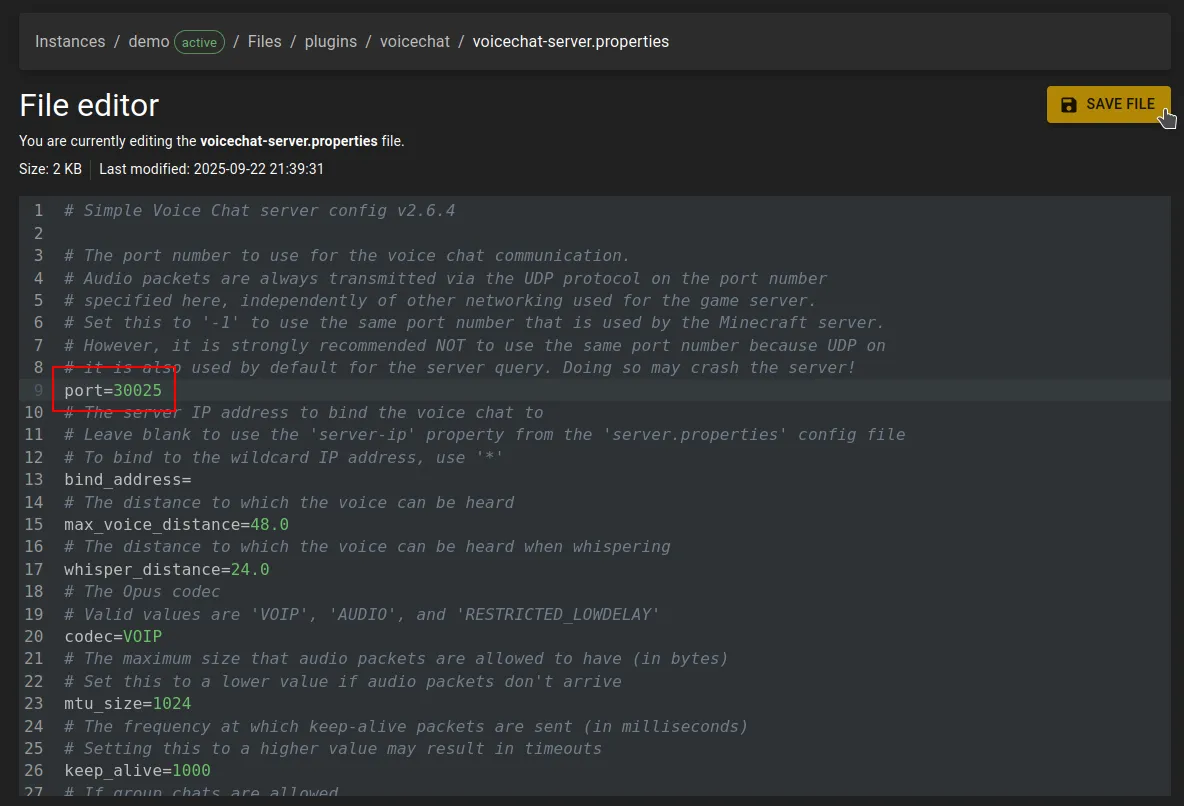
Openplugins/voicechat/voicechat-server.propertiesand updateport=value to match the forwarded UDP port. - Restart again
Apply the changes by restarting the server once more.
Visual guide
Step 1: Find the plugin
Search for "Simple Voice Chat" in the workshop and click to view details.
Step 2: Install the plugin
Click Install, select a version, and confirm.
Step 3: Forward UDP port
Forward a port with UDP protocol enabled. You'll use this port in the plugin config.
Step 4: Configure the plugin
Navigate to plugins/voicechat/voicechat-server.properties, update the port= value, and restart the server.