 PowerupStack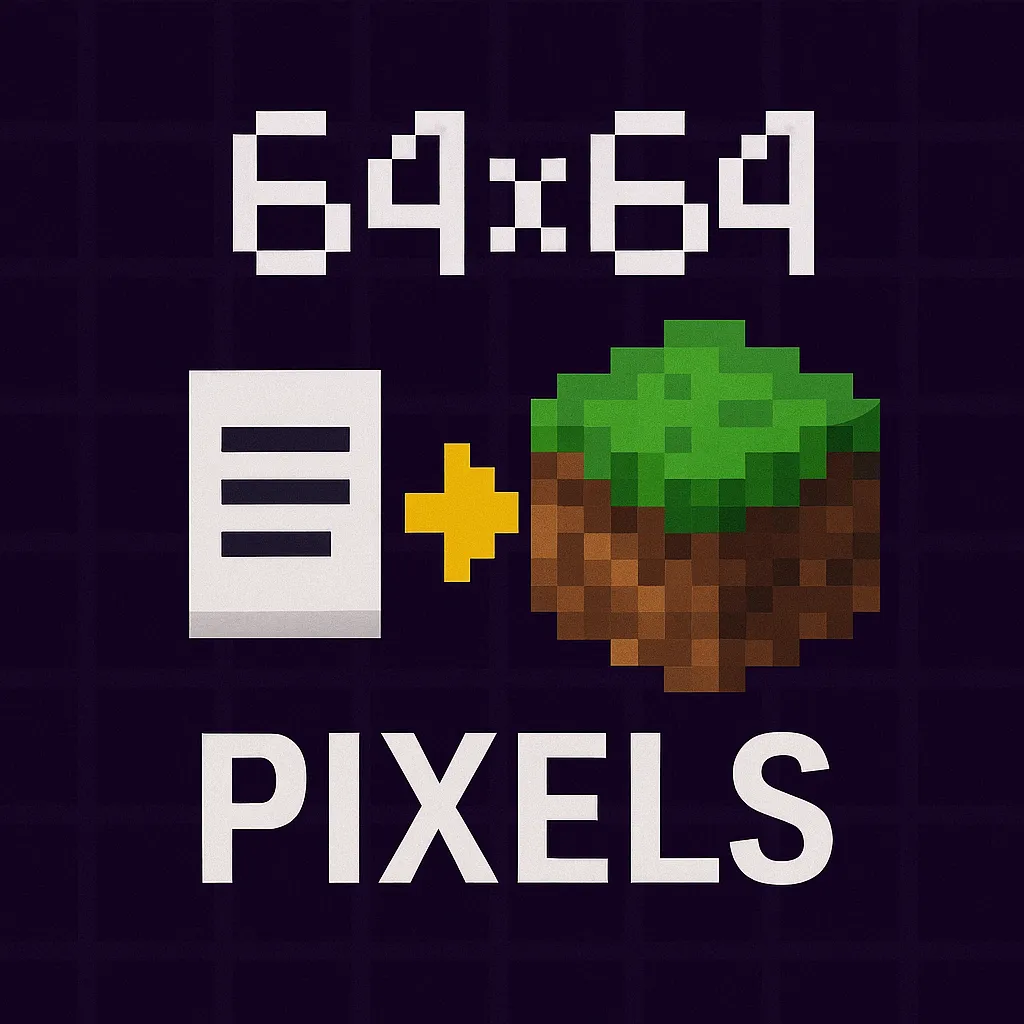
How to add a server icon to a Minecraft server
A custom server icon adds personality and polish to your Minecraft server. It helps your server stand out in the multiplayer list and can make a strong first impression on new players.
Icon requirements
To ensure compatibility and proper display, your server icon must meet the following criteria:
- Format: PNG (.png)
- Dimensions: Exactly 64×64 pixels
- Filename: Must be named server-icon.png
- Supported edition: Minecraft Java Edition
Setup steps
Follow these steps to add your server icon:
- Navigate to the server files in the panel.
- Upload your
server-icon.pngfile directly in the root folder (same level asserver.properties). - Restart the Minecraft server to apply the server icon
- Open Minecraft and check the multiplayer server list. Your icon should now appear next to your server name.